
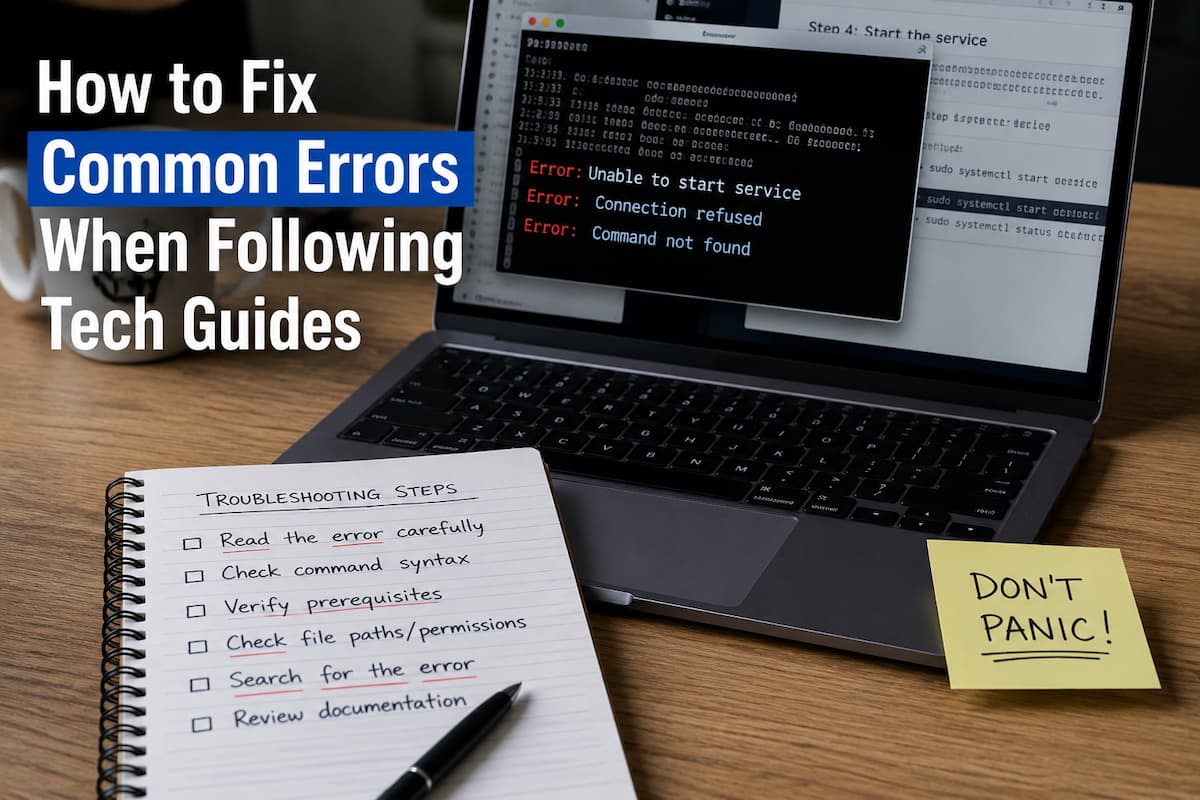
You copy the command exactly as written. You hit enter. The screen fills with red text, and your stomach drops. Somewhere between step three and step four, something went sideways — and the tutorial is already ten steps ahead, humming along like nothing happened.
Welcome to the most common experience in self-directed tech learning. The excellent news? Most errors that derail beginners fall into a handful of predictable categories. Once you learn to recognize the symptoms, the fixes become almost mechanical.
The Diagnostic Mindset
Before diving into specific errors, it helps to reframe how you read error messages. They’re not punishment. They’re the computer trying to tell you exactly what went wrong, in language that happens to look scary when you’re new.
Think of errors like symptoms. A doctor doesn’t panic when you say your throat hurts—they run through a checklist of likely causes. You can do the same with terminal output. Does it mention a file not found? A permission denied? A module is missing? Each symptom points to a specific family of problems, and each family has standard fixes.
The rest of this guide walks through the four error families beginners hit most often, with the actual commands and checks that resolve them.
Error Family 1: The Path Problem
This issue is the silent killer of tutorial progress. You’re in the wrong folder. Or the tutorial assumes a folder structure you don’t have. Or the file it’s referencing lives somewhere your current command can’t see.
Symptoms to watch for:
- “No such file or directory”
- “Cannot find module”
- Commands that worked for the tutorial author but fail on your machine
Quick Fix Checklist
Run pwd (Mac/Linux) or cd (Windows) to confirm where you are. Then run ls or dir to see what’s actually in that folder. If the file you need isn’t there, you’re not where the tutorial thinks you are.
Use cd to navigate to the correct directory before running any project-specific commands. Most path errors evaporate once you’re standing in the right place.
Error Family 2: The Permission Denied Wall
You see “Permission denied” or “Access is denied” and immediately assume you broke something important. Usually, you didn’t. The operating system is just doing its job — preventing random programs from modifying system files.
This crops up constantly when installing packages globally, running scripts, or writing to protected directories. The tutorial says “just run this install command” without mentioning that your user account needs elevated privileges for that specific operation.
Quick Fix Checklist
On Mac/Linux, prepend sudo to the command: sudo npm install -g package-name. You’ll enter your password once. Be cautious — only use sudo for install operations you trust.
On Windows, right-click your terminal or IDE and select “Run as administrator.” Alternatively, many Windows permission errors resolve by installing packages locally in your project folder rather than globally.
Better long-term fix: configure your environment to install packages in user space rather than system space, eliminating most permission issues entirely.
Error Family 3: The Version Mismatch
Software updates constantly. Tutorials age in dog years. A guide written six months ago might reference a package version that no longer exists, or syntax that got deprecated in the latest release. Beginners have no way of knowing this — they just see failure where the tutorial promised success.
Symptoms to watch for:
- “Module not found” for packages that should exist
- Deprecation warnings followed by failures
- Commands that worked last week but broke today
- Tutorial screenshots that don’t match what you see on screen
Quick Fix Checklist
Check your version first: python --version or node --version. Compare it against what the tutorial specifies — usually near the beginning or in a prerequisites section.
If versions differ, you have two options. Option A: install the exact version the tutorial uses (using a version manager like nvm for Node or pyenv for Python). Option B: search “[package name] breaking changes [version]” to see what syntax changed, then adapt the tutorial code.
Pro tip: if a tutorial doesn’t mention version numbers anywhere, that’s a warning sign. Good guides state their environment upfront.
Error Family 4: The Missing Dependency
The tutorial says “now import this library” and your environment responds with “I have no idea what that is.” Sometimes the tutorial forgot to mention a prerequisite install step. Sometimes you installed it, but in the wrong environment. Sometimes the dependency has sub-dependencies that failed silently.
Quick Fix Checklist
First, verify the package is actually installed: pip list for Python or npm list for Node. If it’s missing, install it explicitly: pip install package-name or npm install package-name.
If you’re using Python, check whether you’re in a virtual environment. The terminal should show (venv) or similar at the start of your prompt. If not, packages install globally and your project can’t see them. Activate your environment with source venv/bin/activate (Mac/Linux) or venv\Scripts\activate (Windows).
For stubborn cases, delete the environment and recreate it from scratch. It sounds drastic but often takes less time than debugging a corrupted dependency tree.
When the Error Isn’t in the Code
Sometimes you follow every step perfectly and things still break. Before assuming you’re incompetent — which you’re not — check these environmental factors that tutorials love to skip over.
| Environmental Factor | How to Check | Typical Fix |
|---|---|---|
| Operating system differences | Does the tutorial specify Windows, Mac, or Linux? | Find OS-specific commands or use Windows Subsystem for Linux |
| Shell differences | Are you using Bash, Zsh, PowerShell, or Command Prompt? | Switch to the shell the tutorial assumes, or translate syntax |
| Hidden configuration files | Check for .env files, config files, or settings the tutorial mentions casually | Create missing config files from the tutorial’s example repository |
| Network and firewall issues | Can you reach the package repository in your browser? | Use a different network, VPN, or mirror repository |
Building Your Personal Troubleshooting Playbook
The ultimate fix for tutorial errors isn’t memorizing every possible error message. It’s building a repeatable process you run through whenever something breaks. Over time, this process becomes automatic and your confidence grows.
Here’s the playbook that works for most situations:
Step one: read the last line of the error first. Error messages stack — they show you the chain of events that led to failure. The actual problem is usually at the bottom, stated in surprisingly plain language.
Step two: identify which family the error belongs to. File not found? Path problem. Access denied? Permission issue. Version complaints? Mismatch. Missing module? Dependency gap. Categorizing immediately narrows your fix options.
Step three: check your environment against the tutorial’s stated requirements. Same OS? Same versions? Same shell? Same working directory? Most “mysterious” errors trace back to one of these mismatches.
Step four: search the exact error message plus the technology name. Don’t paraphrase. Copy the error text, paste it into a search engine with “python” or “node” or “react” appended. Someone else has hit this exact wall and documented the climb over it.
Step five: if you’re stuck longer than twenty minutes, walk away. Not forever — just for a break. Fresh eyes spot things tired eyes miss. The number of problems solved during a coffee break would fill a book.
Related Articles
- Why Tech Tutorials Confuse Beginners and How to Fix Them
- Common Reasons Self-Taught Tech Learners Get Stuck
- Simple Guide to Reading Technical Documentation Clearly
- Easy Ways to Practice Coding Without Feeling Lost
- Why Tech Learning Feels Isolated and How to Fix It
- How to Fix Setup Problems in Development Environments
- Common Reasons Beginners Struggle With AI Coding
- Why AI Code Fails and How to Fix Common Errors
Sources and References
Stack Overflow Developer Survey 2025
Annual survey data showing that environment setup and dependency management remain the top two frustrations for developers in their first year of learning.
Python Packaging Authority Documentation
Official guidance on virtual environments, dependency resolution, and best practices for managing Python packages across different system configurations.
Node.js Documentation: Troubleshooting
Official Node.js troubleshooting guides covering permission errors, version management with nvm, and global vs. local package installation strategies.
Mozilla Developer Network: Command Line Crash Course
Comprehensive beginner-friendly reference for terminal commands, path navigation, and understanding permission systems across operating systems.

Cathy started out teaching herself to code through documentation and broken tutorials, which taught her more about learning than any classroom did. Now she focuses on helping others navigate the same path — figuring out why things break, how to fix them, and what trends actually matter versus what’s just noise. She has a background in cognitive science and contributes to open-source education projects.